29 August, 2015

Arduino: scan codes from a remote control

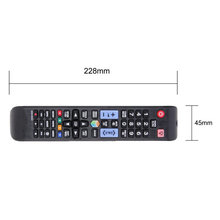
There are different types of infrared remote controls produced by different companies: for TV, DVD and other consumer electronics. As well all of them can be reused for Arduino using an infrared sensor.
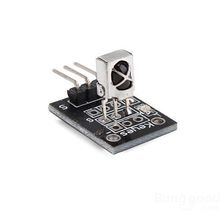
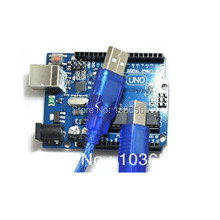
Different remote controls may have different sets of codes, so first you need to determine what code is sent by each button. It is simple. Just connect IR sensor with Arduino:

Arduino Uno + IR sensor

Run this program:

#include <IRremote.h>

const int IR_PIN = 10;

IRrecv irrecv(IR_PIN);

decode_results results;

void setup() {
  Serial.begin(9600);  
  irrecv.enableIRIn();
}

char chars[9] = {};

void loop() {
  if (irrecv.decode(&results)) {
    Serial.println(results.value, HEX);
    irrecv.resume();
  }
  delay(100);
}

*It uses IRremote library.

Open serial monitor, press some buttons on the remote control and see the output:

Serial print scanned codes

Program prints codes for pressed buttons. For example, a remote control from the Samsung SmartTV sends these codes for numeric buttons:

  • E0E020DF 1
  • E0E0A05F 2
  • E0E0609F 3
  • E0E010EF 4
  • E0E0906F 5
  • E0E050AF 6
  • E0E030CF 7
  • E0E0B04F 8
  • E0E0708F 9
  • E0E08877 0

Arduino: print sensor value on the LED display

It is pretty simple to print a value from an analog sensor on the LED display.

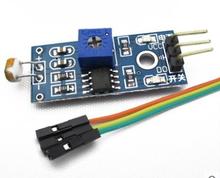
For example from a light sensor like here:

Output light sensor value to led display

and when the sensor is out of light:

Output light sensor value to led display (closed)

Electronic components from the scheme above:

LED display is connected with Arduino via these 5 pins:

  • DIN - data in
  • CS - chip select
  • CLK - clock pulse source
  • GND
  • 5 V

DIN, CS and CLK are connected with Arduino via digital pins 7, 6 and 5.

Light sensor has 3 pins:

  • GND
  • 5V
  • Signal

where signal pin is connected with Arduino via the analog pin №1.

This program reads values from the sensor 10 times per second and displays the averaged result:

#include <LedControl.h>

const int DIN_PIN = 7;
const int CS_PIN = 6;
const int CLK_PIN = 5;

const int SENSOR_PIN = 1;

LedControl display = LedControl(DIN_PIN, CLK_PIN, CS_PIN);

void setup() {
  display.clearDisplay(0);
  display.shutdown(0, false);
  display.setIntensity(0, 10);
}

void displayNumber(int number) {
  display.clearDisplay(0);
  for (int i = 0; i < 8; i++) {
    int digit = number % 10;
    number /= 10;
    display.setDigit(0, i, digit, false);
    if (number == 0) {
      break;
    }
  }
}

void loop() {
  int value = 0;
  for (int i = 0; i < 10; i++) {
    value += analogRead(SENSOR_PIN);
    delay(100);
  }
  value /= 10;

  displayNumber(value);
}

22 July, 2015

Arduino: output multiple numbers to a digital LED display

In the previous article I was describing how to output number into this LED display:

But it is much interesting to display multiple numbers on a single LED module (for example: temperature and moisture or distance and time). It is pretty simple to write it in C.

Like in a previous example DIN, CS and CLK are connected with arduino through these pins: 7, 6 and 5. Here is the working prototype:

Output 2 numbers to led display

In this example are implemented two counters: 2-digits, and 5-digits. The first counter increments from 0 to 99, and then resets on reaching the maximum values. The second - reduces from 99999 to 0, and resets after the zero. In each cycle a digital display shows both numbers at the same time, with an empty place as a separator between them.

Code sample:

#include <LedControl.h>

const int DIN_PIN = 7;
const int CS_PIN = 6;
const int CLK_PIN = 5;

LedControl display = LedControl(DIN_PIN, CLK_PIN, CS_PIN);

void setup() {
  display.clearDisplay(0);
  display.shutdown(0, false);
  display.setIntensity(0, 10);
}

void displayString(const char *chars8) {
  display.clearDisplay(0);
  for (int i = 0; i < 8 && chars8[i] != 0; i++) {
    display.setChar(0, 7 - i, chars8[i], false);
  }
}

int counter1 = 0;
long counter2 = 99999;

char chars[9] = {};

void loop() {
  snprintf(chars, 9, "%-2d %5ld", counter1, counter2);
  displayString(chars);

  counter1++;
  counter2--;

  if (counter1 > 99) {
    counter1 = 0;
  }

  if (counter2 < 0) {
    counter2 = 99999;
  }

  delay(250);
}

In this example two numbers are packed into the char array and then displayed via the displayString() function. I use snprintf() function for this; it is much safe then sprintf().

The first number is aligned on the left edge of the display, the second - on the right.

This code requires LedControl library.

Set of components used in this example:

20 July, 2015

Arduino: output number into digital LED display MAX7219

There are some LED modules for Arduino to display numbers.

For example, this LED display with 8-digits based on the chip MAX7219:

It connects to the Arduino board via five pins:

  1. DIN - data in
  2. CS - chip select
  3. CLK - clock pulse source
  4. GND
  5. 5 V

In this example all elements are connected in this way:

Output number to led display

Here DIN, CS and CLK are connected with pins 7, 6 and 5.

Arduino site has a big LedControl article related to control over the LED matrix. But it doesn't contain a sample that shows how to output whole number.

The code below implements a simple counter, which increases its value once per second and displays it on a digital display:

#include <LedControl.h>

const int DIN_PIN = 7;
const int CS_PIN = 6;
const int CLK_PIN = 5;

LedControl display = LedControl(DIN_PIN, CLK_PIN, CS_PIN);

void setup() {
  display.clearDisplay(0);
  display.shutdown(0, false);
  display.setIntensity(0, 10);
}

void displayString(const char *chars8) {
  display.clearDisplay(0);
  for (int i = 0; i < 8 && chars8[i] != 0; i++) {
    display.setChar(0, 7 - i, chars8[i], false);
  }
}

int counter1 = 0;
long counter2 = 99999;

char chars[9] = {};

void loop() {
  snprintf(chars, 9, "%-2d %5ld", counter1, counter2);
  displayString(chars);

  counter1++;
  counter2--;

  if (counter1 > 99) {
    counter1 = 0;
  }

  if (counter2 < 0) {
    counter2 = 99999;
  }

  delay(250);
}

In this code I use displayNumber() function, that writes value for each decimal digit into the appropriate LED segment.

This code requires LedControl library.

Electronic components used in this example:

01 February, 2015

How to open sas7bdat file

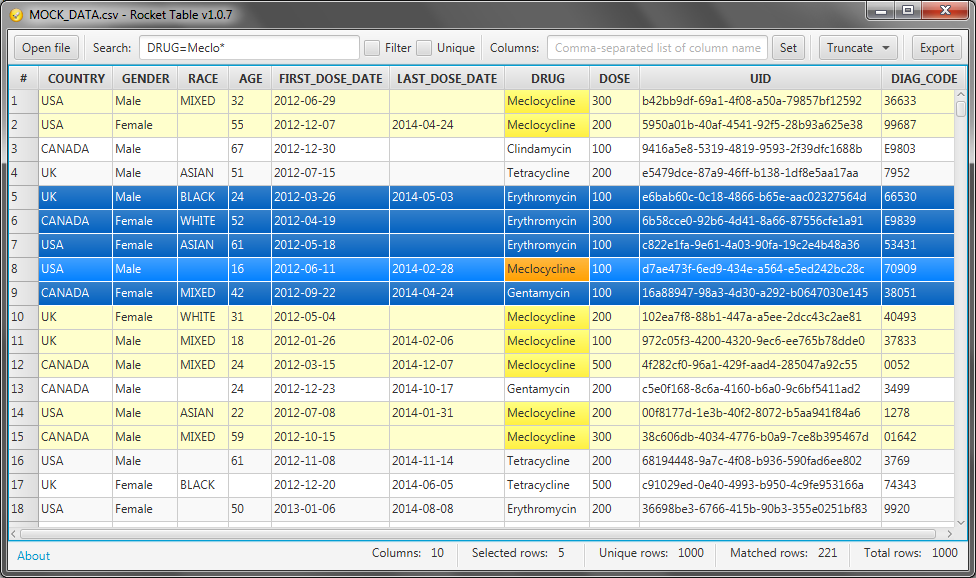
I found Rocket Table application for this purpose. It doesn't require any SAS software, it's free and easy to use.
SAS Table Explorer allows you to open file in the .sas7bdat format and shows it as a table.

Main features of this application are:
  • Search over the whole dataset, or by specific columns
  • Highlight search results
  • Wildcard search
  • Truncate the analyzed dataset (to matched or selected rows)


Anyway this is the most compact tool for opening sas files.